PDF Semantic Search Tool
The idea for this project came to me during a lecture on De Bruijn Graph Assembly in my Algorithms for Bioinformatics class. I got momentarily distracted, trying to figure out why the name “De Bruijn” sounded so familiar. It’s not quite the same spelling as Man City’s captain, Kevin De Bruyne, but I was convinced I had seen “De Bruijn” somewhere before.
I checked the Wikipedia page, hoping it would refresh my memory. Eventually, it clicked. I had come across the name in a different context, during my Software Performance Engineering class. I searched through the lecture slides stored on my laptop and, after a bit of digging, found it. The name appeared in a section about using permutations to efficiently compute log(x) (check slides 45 and 47 of MIT’s OCW version). The application was very different from what we were studying in the bioinformatics class, but the shared terminology stuck with me.
This gave me the idea to build a CLI tool that could search through all my lecture slides and pick relevant content based on a query. In short, I needed a system that could scan a collection of PDFs and identify the most relevant slides for a given prompt.
What I wanted to build
The goal was straightforward: given a prompt (like “De Bruijn”), find the most relevant slides from a bunch of PDFs. In other words, a lightweight Retrieval-Augmented Generation (RAG) system.
With some help from ChatGPT, this was the outline:
- Extract text and metadata from all the PDFs (slide number, file name, etc.)
- Embed everything using a language model so we can compare semantic similarity
- Build a CLI interface that takes a prompt, finds matching slides, and displays them nicely
Tooling & Tech Stack
After a bit of experimentation, I landed on the following tools:
pymupdf4llm– for clean text extraction from PDFs, outputting in Markdown (great for rendering)- LangChain + ChromaDB – to manage embeddings and vector search
rich– for building an interactive and nicely formatted terminal UI
Extracting Text from PDFs
Basic Text Extraction (Using pymupdf)
import pymupdf

doc = pymupdf.open("example2.pdf")
for i, page in enumerate(doc):
    print(f"-- Page {i+1}:")
    text = page.get_text()
    print(text)

doc.close()
Enhanced Markdown Extraction (Using pymupdf4llm)
import pymupdf4llm
import pymupdf

doc = pymupdf.open("example2.pdf")

md_text = pymupdf4llm.to_markdown(doc, pages=[10, 11], write_images=True, page_chunks=True)

for page in md_text:
    print("*** Of interest:")
    print("file_path:", page['metadata']['file_path'])
    print("page number:", page['metadata']['page'])
    print("page text:", page['text'])  # in Markdown format
Final Version of Text Extraction (found in create_db.py)
def load_pdf_as_markdown(pdf_path: str) -> list[Document]:
    """Load a PDF file and convert it to markdown documents."""
    doc = pymupdf.open(pdf_path)

    # Get total number of pages
    total_pages = len(doc)

    # Convert each page to markdown
    pages = to_markdown(doc, page_chunks=True)

    documents = [Document(
        page_content=page['text'],
        metadata={
            'source': pdf_path,
            'page': page['metadata']['page'],  # slide number
            'total_pages': total_pages
        }
    ) for page in pages]

    return documents
Vector Database: ChromaDB
I chose ChromaDB over FAISS and Qdrant due to its simplicity and suitability for local development. It integrates well with the Langchain ecosystem and provides a fast, dev-friendly setup.
Results are retrieved simply using the following call:
vectorstore = Chroma(persist_directory=CHROMA_DIR, embedding_function=embedding_model)
results = vectorstore.similarity_search(query, k=k)
Embedding Model
Langchain supports integration with Hugging Face models from the sentence-transformers library. Based on ChatGPT’s recommendation and the SBERT rankings, I selected the all-MiniLM-L6-v2 model. Per the rankings page, it offers a good trade-off between performance and speed. ChromaDB also lists this model as a default option (source).
Interactive Terminal UI
I explored both prompt_toolkit and rich.live to build an interactive UI. While prompt_toolkit has some cool features, it was a pain to get Markdown rendering working. Even ChatGPT’s ANSI hack didn’t work out.
In the end, rich won out for its Markdown support and ease of use. It just worked.
Code and Usage
The project code is available on GitHub: Asaad47/pdf_search.
There are two main scripts:
create_db.py: processes PDFs and builds the vector databasesearch.py: takes a query and shows relevant slides in the terminal
Example Workflow
- Add PDFs to the
PDF_PATHSlist inconfig.yaml - Run
python create_db.pyto build the database. - Search using:
python search.py "YOUR QUERY HERE" -i
Note: On my machine,
create_db.pytook about 879 seconds and used roughly 1.91 GB of RAM to process 320 files.
Example:
python search.py "De Bruijn" -i -x cs249
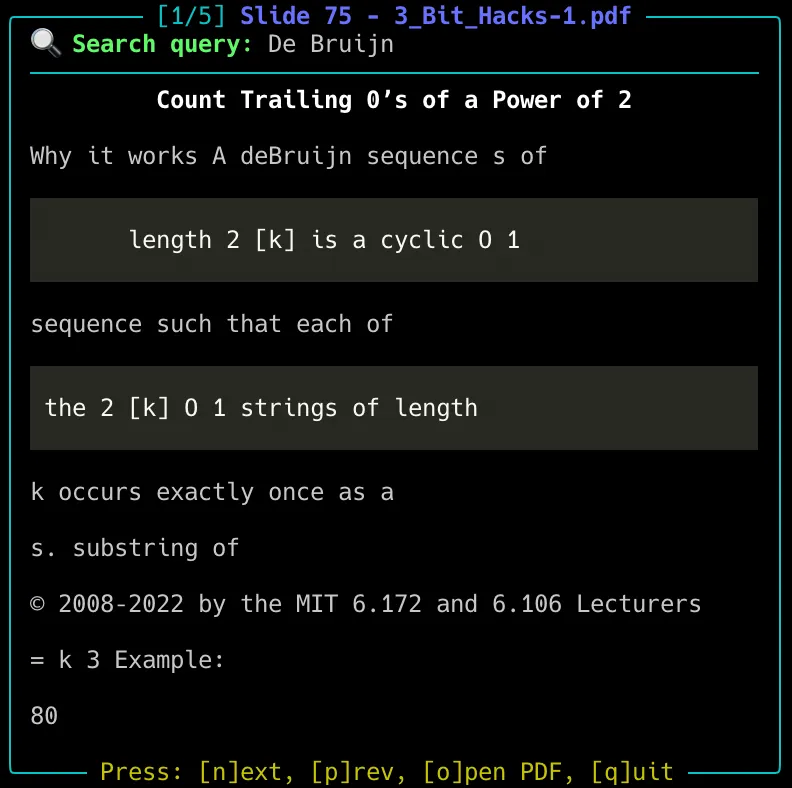
The screenshot shows the slide where I found the reference to the efficient computation of log(x), or at least one nearby. While the Markdown rendering isn’t ideal for readability, it still provides a helpful indication of which file contains the relevant concepts related to the query.
Future Improvements
- Skip slides that are completely repeated (i.e. duplicated content)
- Add an LLM summarizer that reads the top matches and gives a concise answer
References
Some useful resources that helped me along the way: